Filters
Filters are the heart of WPE x64: match a packet by rule and rewrite it before it is really sent or received. This chapter covers the matching algorithms, the cell marks, the five actions and chained execution in one go.
00 · Before you edit: which tool should do it
Four places in WPE can change what goes over the wire, and they do not overlap. Picking the wrong one is the number-one reason a filter appears not to work — trying to edit HTTP(S) with a filter, above all, never matches:
| What you want | Use | Why not a filter |
|---|---|---|
| Change a few bytes in a TCP / UDP packet | Filter · Replace | — this is it |
| Stop a kind of packet being sent or received at all | Filter · Intercept | — this is it |
| Reply with a fixed payload on a match | Filter · Change, or a filter triggering a Robot | — this is it |
| Change an HTTP / HTTPS response body | Map Settings · Map Local | filters expose 12 packet-type switches and none covers HTTP(S) or WebSocket — those packets never enter matching |
| Redirect a request to another host or port | Map Settings · Map Remote | filters change content, never the destination |
| Not capture a packet type at all | Hook Settings | filters act after the packet exists; turning it off at the source costs less |
| Just tidy up a noisy list | Leach Setting | filters really do change data; using one as a display filter will damage live traffic |
| Send packets on your own schedule | Send List | filters are reactive — with no match, nothing happens |
Filters are the only mechanism in WPE that changes real network data. Here is the shortest path from nothing to a working one.
- Catch a sample first: find the packet in the list, right-click → Add to Filter List, and the search row is prefilled from its content.
- Name the filter and tick the packet types it applies to — Send / Recv and friends in Inject Mode, TCP / UDP request and response in Proxy Mode.
- Write the search row: keep only the bytes that identify the packet uniquely; empty cells are wildcards. Fewer bytes match more easily, more bytes match more precisely.
- Write the modify row: put the new values at the right offsets. For values that should increment or vary, use the Progression and Random marks.
- Pick an action:
Replaceto edit bytes,Interceptto drop the packet,Changeto rebuild it whole (see section 06). - Save, turn the On switch on back in the list, then start capturing. Check the filter log and Statistics to confirm it really fires: the Runs column starts climbing, and matching packets change colour in the packet list.
01 · The life of a filter
02 · The Filter List
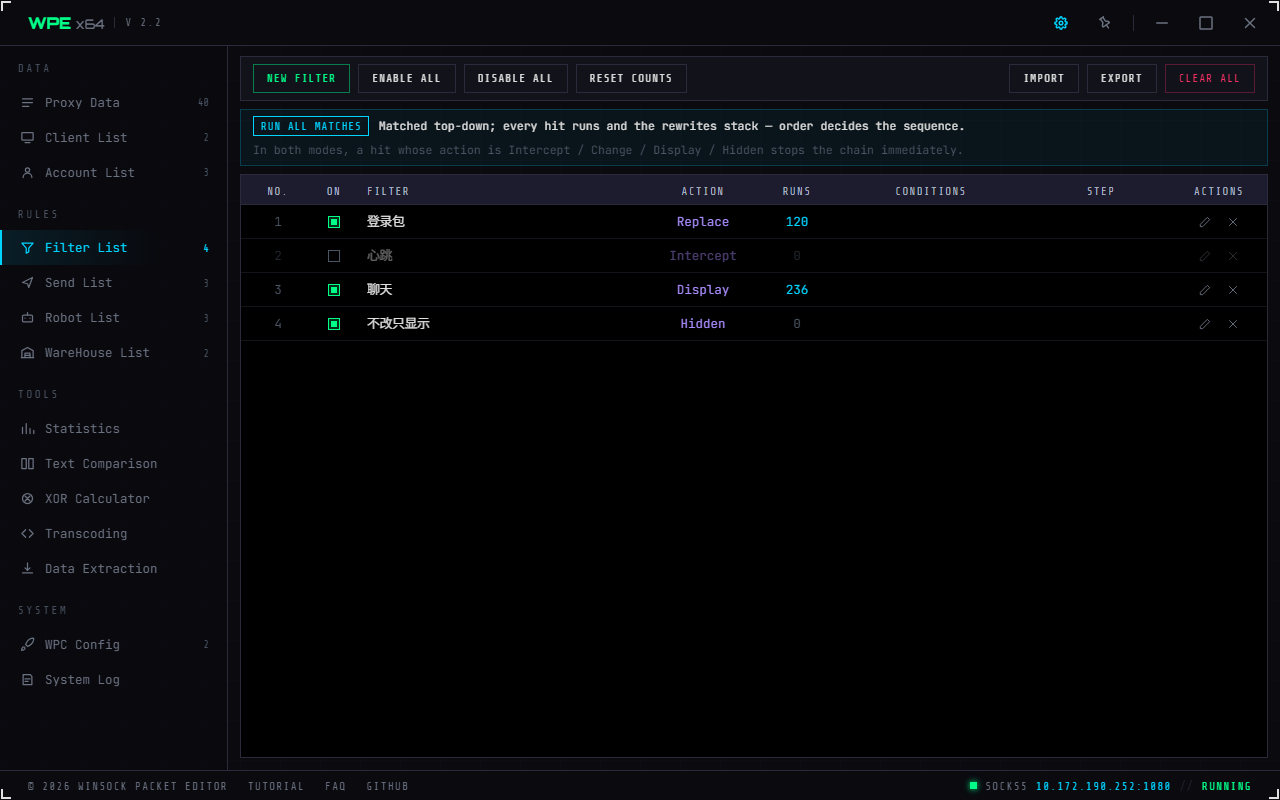
- Toolbar: New filter · Enable all · Disable all · Reset counts; Import / Export / Clear all at the right end
- The execution-order note: the badge on its left shows the mode actually in force (Run all matches / First match wins, switched under System Settings), and the sentence after it says what order means in that mode. ⚠️ Under "First match wins" the badge turns amber — order means something different there (only the first match runs)
- Columns:
No. / On / Filter / Action / Runs / Conditions / Step / Actions - The Action column is a single violet; what really is coloured by action is the matched row in the packet list — Replace = magenta · Change = amber · Intercept = red · Display = cyan, and those four palettes can be edited under System Settings · Action Colors (Hidden never reaches the list, so it has no colour)
- On is the only checkbox on this screen (every checkbox in WPE is green), and takes effect and is saved on click. Disabled rows are dimmed as a whole, except the checkbox cell
- Double-click a row to open the filter editor (so does the pencil at its end)
- ⚠️ This table deliberately cannot be sorted by its headers: the order is the data here (the engine walks it top to bottom by index), and sorting once would make the order on screen disagree with the order of execution. Use move to top / up / down / bottom from the context menu instead
Toolbar, left to right: New filter Enable all Disable all Reset counts; the three at the right end act on the whole table — Import (read a .fp), Export (write every filter to a .fp) and Clear all.
The context menu has seven items and they all act on the rows currently selected (the count is appended to each label): Move to top / Move up / Move down / Move to bottom / Export / Duplicate / Delete, plus Select all and Deselect. With nothing selected you get "Select the rows to act on first". Double-click opens the filter editor.
Under "Run all matches", list order is match order. When a filter does not seem to fire, try moving it to the top first.
Three ways to create a filter
- Filter List toolbar → New filter: creates an empty filter named
Filter N(N being the current count plus one), modeNormal, actionReplace, every packet type ticked and the On switch off. - Right-click in the packet or proxy list → Add to filters: prefills the search row from that packet — much the easiest start.
- Select bytes in the hex panel or packet editor → right-click → Add to filters: fills from just that selection, for when you have already found the signature; with nothing selected the whole packet is used.
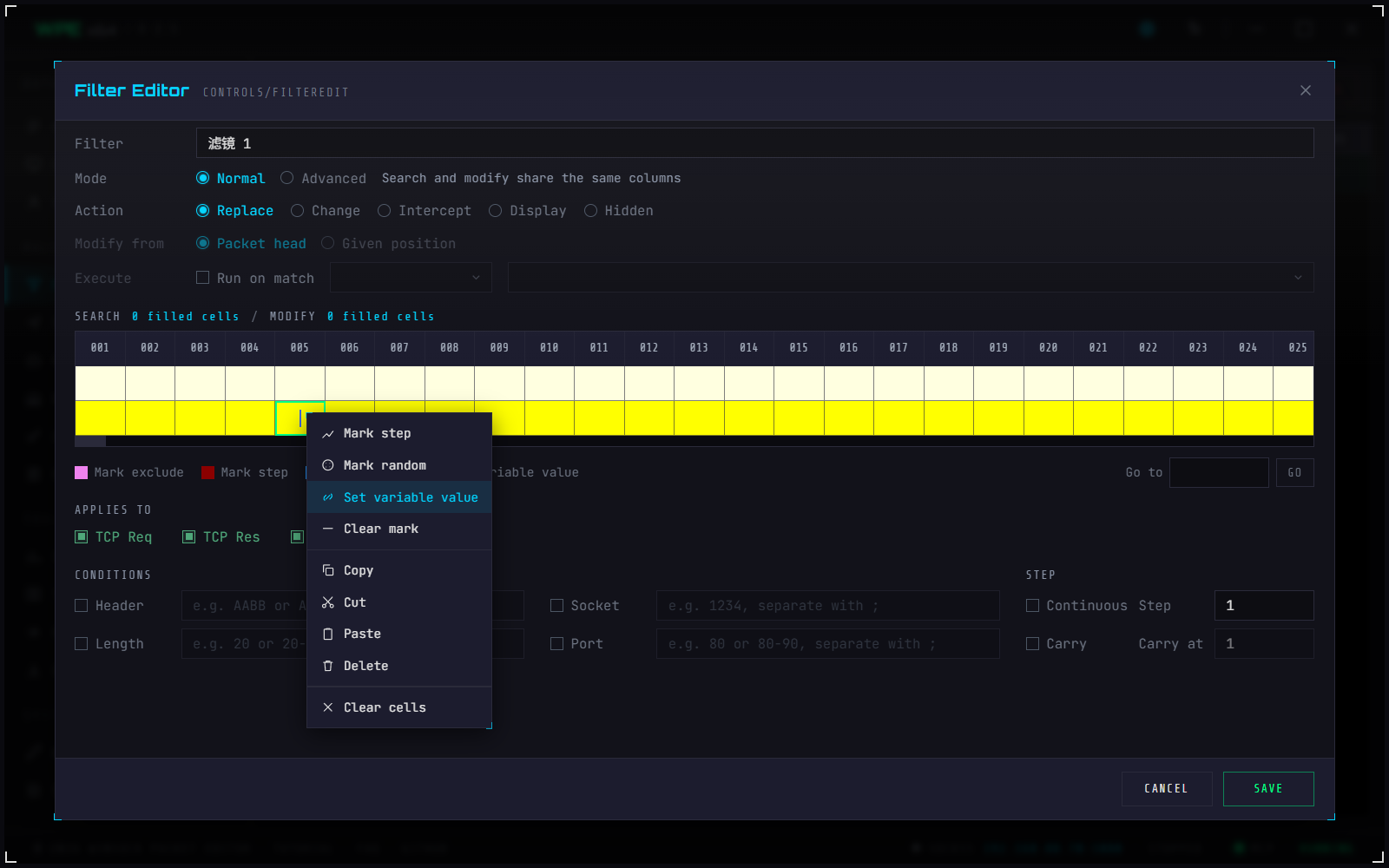
03 · The Filter Edit window
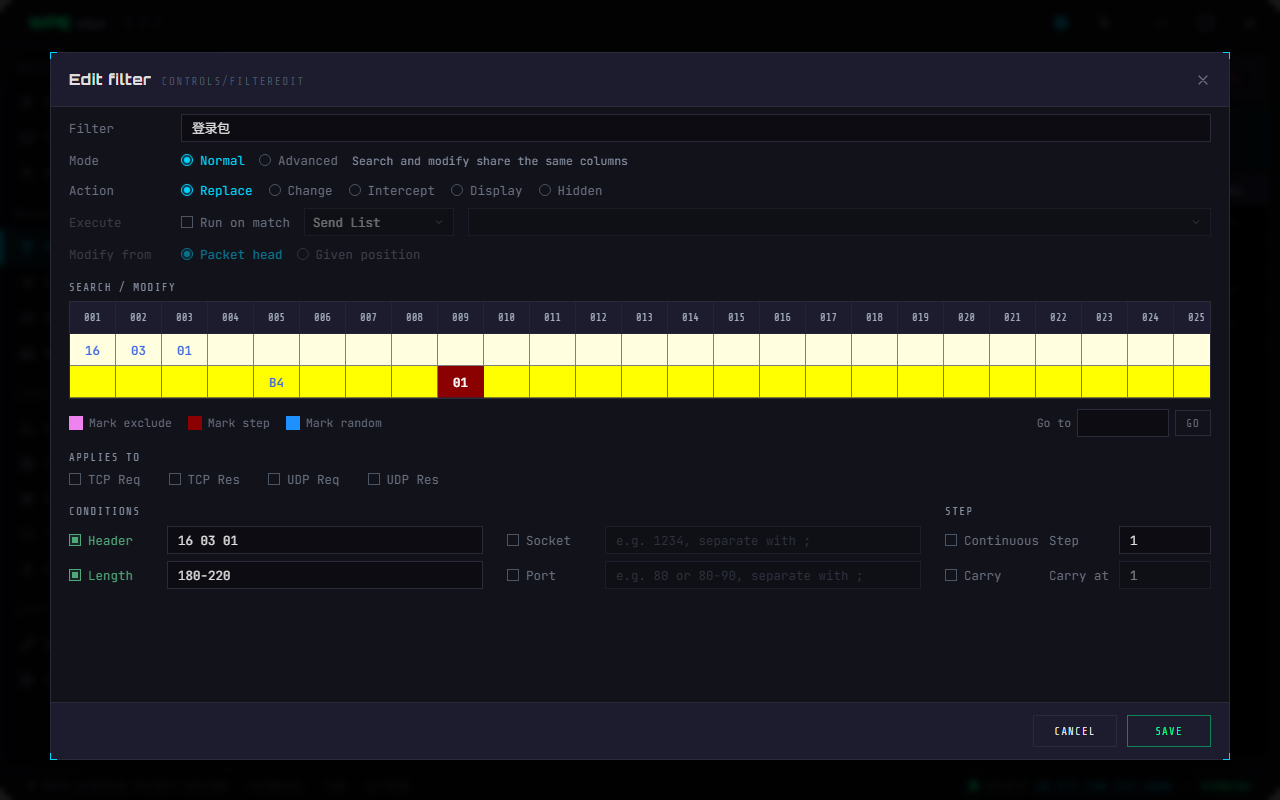
- Filter name: free text. A filter created from the packet list's "add to filters" is now named after the server address plus the packet length (e.g.
101.227.22.133:443 [180]), so you can tell at a glance which connection it came from - Mode: Normal (search and modify share the same columns) or Advanced (the two positions are independent), see section 04. The grey line to the right changes with the mode and says exactly that
- Action: Replace / Change / Intercept / Display / Hidden — one of five, see section 06
- Execute: tick "Run on match", then pick the type on the left (Send List / Robot List / Filter List / WareHouse List) and the target on the right; both dropdowns are dimmed and disabled while it is off
- Modify from: advanced mode only (in normal mode it is dimmed but still visible, so you can see the option exists). "Packet head" counts from the first byte; "Given position" is an offset from the match point and may be negative
- SEARCH / MODIFY: in normal mode both rows live in one table aligned by column; in advanced mode SEARCH has a single row and MODIFY is a separate table with its own scrollbar. Columns start at
001and run to 1000 (the row under the grid has a "Go to" box at its right end — type a number and it scrolls there) - The three colour chips in that legend row are the cell marks: Mark exclude · Mark step · Mark random — toggled by right-clicking a cell, see section 05
- Applies to: a different set per mode — proxy mode offers TCP and UDP request/response (shown here), inject mode the eight WinSock categories. Tick at least one, or the filter can never match
- Conditions: Header / Socket / Length / Port. Only ticked ones count, and several of them are ANDed. The placeholders spell out the accepted syntax (
e.g. 80 or 80-90, separate with ;) — saving checks the format and flags a mistake on the spot - Step (progression): Continuous + Step, Carry + Carry at — it sits beside Conditions, two rows each. ⚠️ It only decides how the value grows; which byte it applies to comes from the cells marked "step" in the modify row. You need both
Column 001 is byte index 0. Subtract one whenever you count offsets.
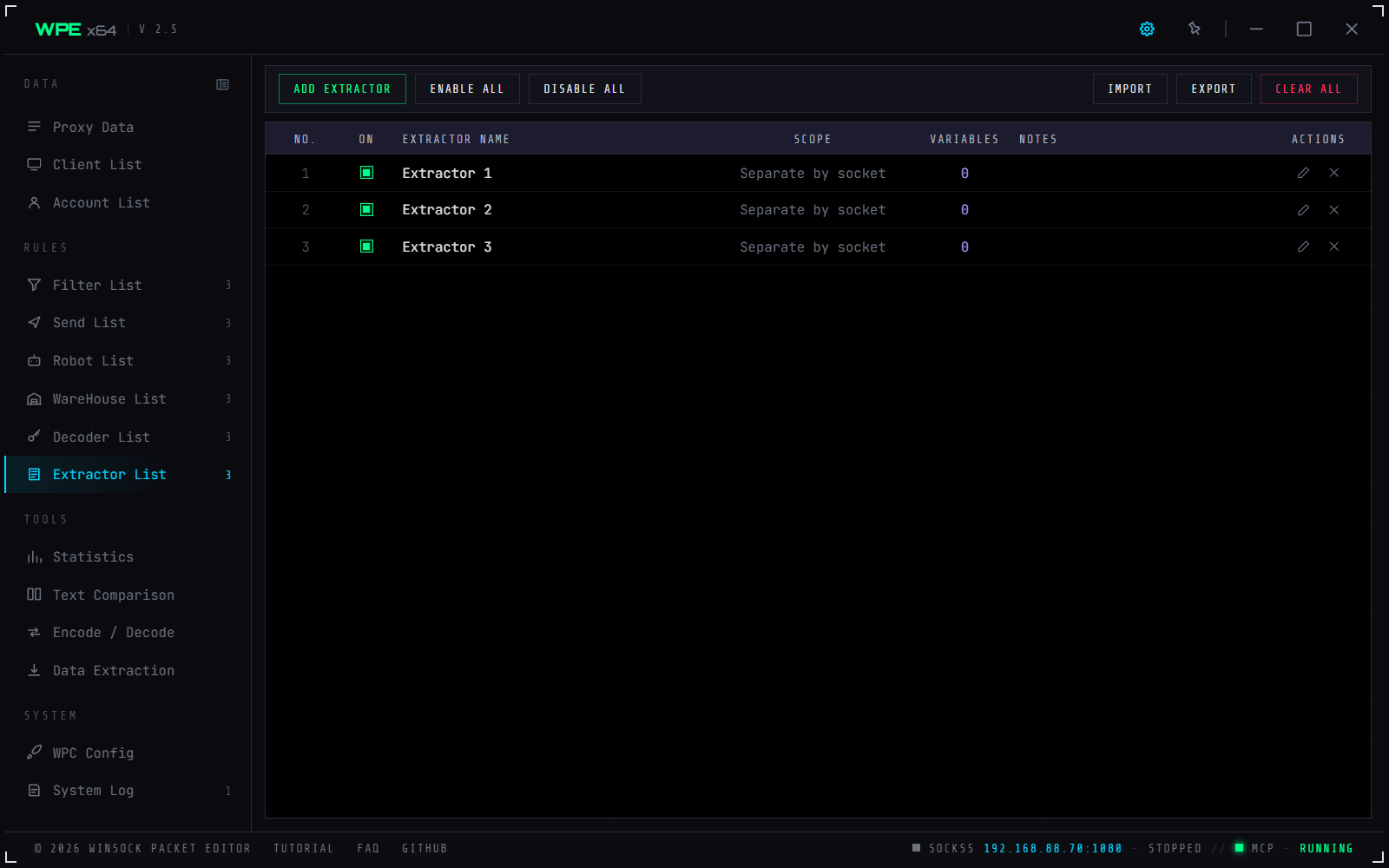
Packet extractors and dynamic replacement (2.5)
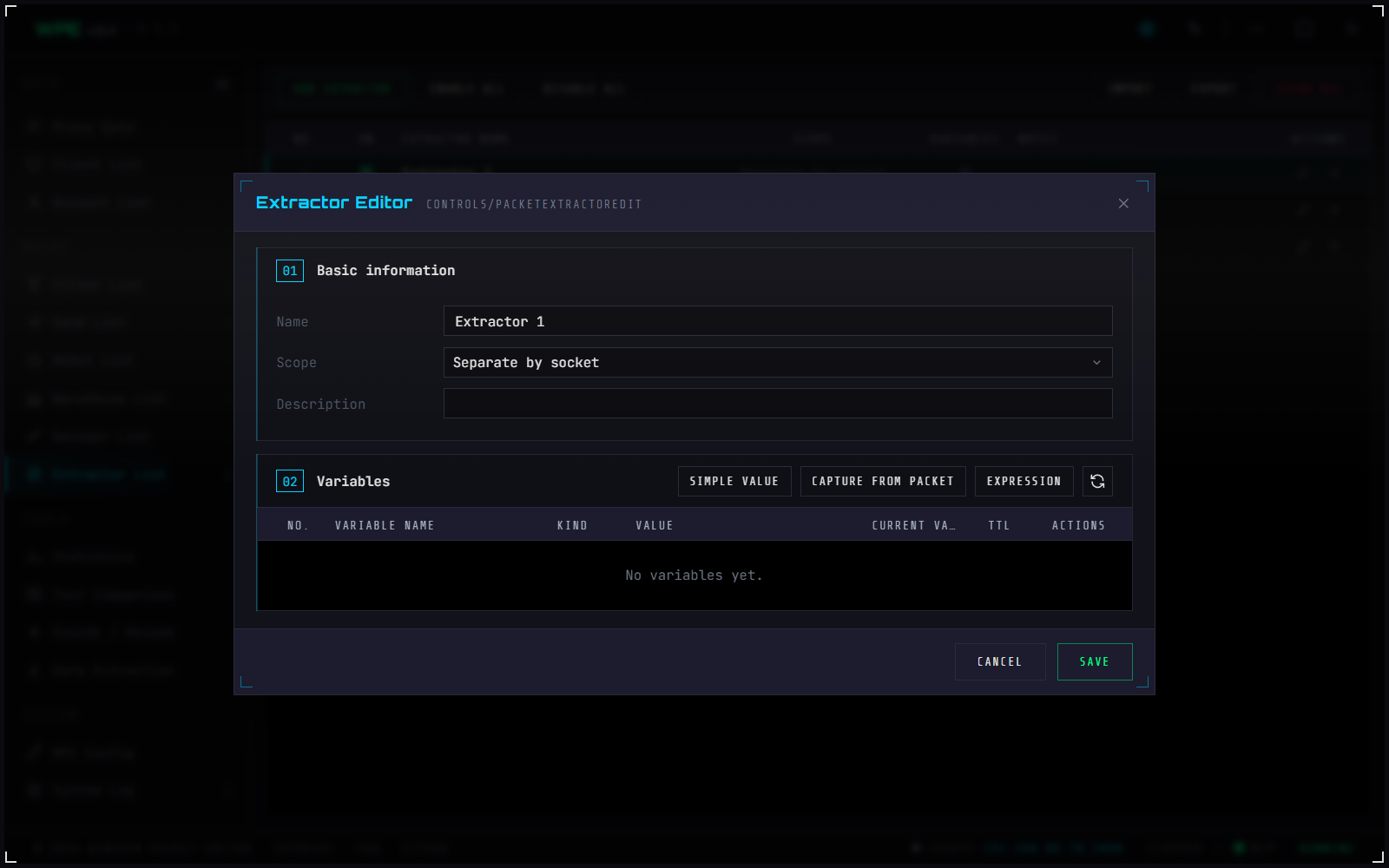
Packet Extractors, in the Rules group, save a field from a matching packet as a variable and let a later filter modification write it back. An extractor does not match packets by itself: a filter's extractor-assignment action triggers it. Variables can be constants, packet extractions or expressions; their type is integer, floating point, bytes or text.
- Extraction reads at an absolute offset or relative to the current match. Integers support byte order and signed parsing; text supports UTF-8, GB18030 and Big5. An out-of-range read or conversion failure produces no value.
- Scopes are global, socket and proxy session; the latter two can have a TTL. Runtime values exist only in the memory of the process handling packets, not in the database or backup.
- Expressions may reference enabled variables (
${extractor.variable:format}): numbers can calculate, bytes can concatenate and text can concatenate. Circular or unavailable references produce no writable value. - Dynamic replacement binds a modify cell to an extractor variable through its right-click menu and chooses an output format. Numeric values require an explicit width and byte order; no value is written when the variable is missing, disabled, unavailable or expired.
Place a filter that captures a value before a filter that consumes it. Within a matching packet, WPE captures values before rendering bound modify cells. Extractor configuration supports ordering, copy, import/export and backup.
04 · Normal versus Advanced
4A 5B gives completely different results.| Normal | Advanced | |
|---|---|---|
| Meaning | match at fixed offsets | slide a signature across the packet |
| How many matches | evaluated once | can match several times |
| Data grid | one table, two rows (search / modify) sharing a scrollbar and aligned column by column, 001–1000 | two independent tables (one search row, one modify row), each with its own scrollbar; the modify table's column range follows "Modify from" |
| Modify offsets | absolute | "Packet head" is absolute; "Given position" is a relative offset, possibly negative |
| Use when | fields sit at fixed positions | fields move about, or headers vary in length |
"Modify from" (Advanced only)
| Option | What is processed | What the modify columns mean |
|---|---|---|
| Packet head (default) | the first match only | absolute indexes, starting at 0 |
| Given position | every match | offsets relative to the anchor, which is 0 — negatives allowed |
Wildcards
Search cells support nibble wildcards:
| Written as | Means | Mask |
|---|---|---|
4A | exactly the byte 0x4A | 0xFF |
4* | high nibble must be 4, low nibble anything | 0xF0 |
*A | low nibble must be A, high nibble anything | 0x0F |
① Normal-mode search cells do not accept * — the editor only lets you type 0-9 A-F there. Switch to Advanced to use wildcards in a search cell (modify cells accept them in both modes).
② Only two-character forms like X* and *X count as partial wildcards. A full ** is not added to the match conditions at all — it is the same as leaving the cell empty.
③ In Advanced mode the leftmost filled cell is the anchor: the engine slides it across the packet looking for a whole-byte equality, so a wildcard there is not relaxed nibble-wise. Keep wildcards for the cells after it.
05 · The three cell marks
Right-click a cell in the grid to toggle them; they are told apart by background colour. A row of matching colour chips sits under the grids, so a cell and its meaning line up at a glance; right-click again and choose "Unmark exclude" / "Clear mark" to undo. Step and Random are mutually exclusive — setting one clears the other; and an empty cell cannot be excluded ("Cannot set Exclude for Empty"), with the purple shading dropped again if you delete the value.
| Mark | Row | Colour | Meaning |
|---|---|---|---|
| Exclude | search | purple | inverted: the byte matches when it differs from the value |
| Step (progression) | modify | dark red | adds the step on every match, optionally carrying over |
| Random | modify | bright blue | writes a random byte each time, guaranteed to differ from the old one; marking a cell random clears its value (a random cell needs no preset) |
Ticking Continuous without also right-clicking the modify cell and choosing "Mark step" does nothing. The checkbox picks how the value accumulates; the cell shading is what decides which byte it applies to.
How progression is calculated
For each step cell: new = old + step × (progression count + 1), taken modulo 256.
- With Continuous ticked the count rises by one per match, so the value keeps climbing. Without it, the same increment is applied every time
- With Carry ticked, a byte overflowing past 0xFF carries into the preceding bytes, across at most Carry at of them; it stops as soon as a byte produces no further carry
- The progression count is not persisted: restarting the program, or pressing "Reset counts" on the list toolbar, zeroes it together with the run count
06 · The five actions
"NoModify Display" and "NoModify NoDisplay" in older tutorials are Display and Hidden here, and filters converted from a .filt file map to these two.
| Action | What it does | Default colour of the matched row |
|---|---|---|
| Replace | rewrites the matched bytes from the modify row, applying progression and random cells. The only action that lets matching continue | deep magenta on bright magenta text |
| Change | discards the original content and builds a new packet from the modify row, its length being the highest index plus one | deep amber on bright amber text |
| Intercept | the packet is dropped — never sent, never received | deep red on bright red text |
| Display | content untouched, but the packet is guaranteed to reach the list and the counters | deep cyan on bright cyan text |
| Hidden | content untouched and kept out of the list — for silencing frequent heartbeats | — (it never reaches the list) |
The table shows the factory values of a freshly created database (dark ground plus bright text of the same hue, retuned for the dark skin). Click a swatch under System Settings · Action Colors to change the text and background. ⚠️ The colours are stored in the database, so an older database still holds the older set until you change it or switch to a new one.
Change replaces the packet wholesale with the modify row, so that row must be filled continuously from column 001: a gap in the middle — or a Random cell, since marking one clears its value — makes saving fail outright with "Change Error". The new packet is as long as the highest index in the modify row plus one. To keep the original content, use Replace.
Chained execution
Tick "run on match", then the left dropdown picks the type and the right one the target:
| Type | Target | What happens on a match |
|---|---|---|
| Send List | one send item | runs that send immediately — auto-replies, canned sequences |
| Robot List | one robot | starts that robot, passing the current socket in as FilterSocket |
| Filter List | another filter | runs that filter as well — chained processing. The candidate list excludes this filter itself, since running itself would loop forever |
| WareHouse List | one warehouse | saves the matched packet there — the rewritten version if it was changed |
When the corresponding list is empty the right-hand dropdown reads "That list is empty" — create a send, robot or warehouse first, then come back.
07 · Filter execution mode
Switched under System Settings → Filter Execution → "On multiple matches":
| Mode | Behaviour | Use when |
|---|---|---|
| Run all (default) | walks every filter top to bottom. Replace lets matching continue, so later filters see the already-edited data; Intercept / Change / Display / Hidden return immediately | several filters need to stack on one packet |
| First match wins | the first match wins and matching stops there | the rules are mutually exclusive and speed matters |
08 · Filter log and statistics
Every match outside Speed Mode writes a log line: Time / Filter / Action / Matches / Type / Length. Read it under System Log → Filter Log, and export to Excel if needed. "Matches" is always 1 in Normal mode; in Advanced mode it is how many places in that packet matched.
The Statistical Data page shows progress bars for how much traffic filters touched and how the actions break down.
09 · Import, export and conversion
- The native format is
.fp— a filter list in XML, optionally encrypted - To convert from a legacy WPE
.filtfile, use the Data Extraction page, pick the Legacy FILT filter card (.filt→.fp), then read the generated.fpback with the Filter List's Import. The converter parses each line's 35¥-separated fields and maps out the filter name, the header / socket / length conditions, Normal or Advanced mode, the Replace / Intercept / Hidden / Display actions, the search and modify content, progression and the rest. Converted filters always arrive switched off — turn them on yourself after importing
10 · Five worked examples
Example 1 · pin a field to a fixed value
Goal: in every Send packet, change the fifth byte — index 4 — from 01 to 09.
- Add a filter and name it "Lock field".
- Mode = Normal; action = Replace.
- Tick packet type
Sendfor Inject Mode, orTCP requestfor Proxy Mode. - Grid: put
01in column005of the search row, and09in column005of the modify row. - Save, then switch it on in the list.
Example 2 · silence flooding heartbeats
Goal: keep packets with head 01 00 03 and a length of exactly 8 out of the list.
- Add a filter with action = Hidden.
- Under Conditions, tick Header and enter
01 00 03(two digits per byte, spaces optional). - Under Conditions, tick Length and enter
8. - In the search row put
01/00/03into columns001/002/003.
Step 4 is not optional: a filter with an empty search row never matches. Setting only Conditions · Header is not enough — those four are preconditions; the actual matching is done by the search row.
Example 3 · follow a signature (Advanced mode)
Goal: wherever 4A 5B appears, set the second byte after it to FF.
- Mode = Advanced; action = Replace; Modify from = Given position.
- Search grid:
4Ain001,5Bin002. - Modify grid, relative: put
FFat offset+3.
The anchor4Ais offset 0,5Bis 1, the next byte is 2, and the one after that is 3.
Example 4 · an auto-incrementing counter
Goal: add one to byte 9 on every match, carrying across two bytes on overflow.
- Mode = Normal; action = Replace.
- In the Step group tick Continuous with a Step of
1, and tick Carry with Carry at2. - Right-click column
009of the modify row → Mark step; the cell turns dark red.
Example 5 · auto-reply on a match
- First create a send item and add the reply packet to its collection.
- Create the filter with action Display — you only want the trigger, not an edit.
- Tick Run on match → choose
Send Liston the left → pick the send item you just created on the right.
11 · When a filter does not fire
① Is the enable switch on in the Filter List?
② Is at least one packet type ticked, and does it match the packets you are after?
③ Did you tick Header / Socket / Length / Port under Conditions but enter a value the packets do not carry? All four are ANDed — one failing skips the whole filter (a malformed value is rejected when you save).
④ Is the search row empty? With nothing to search for, nothing ever matches.
⑤ In Normal mode, does an index run past the packet length? That counts as no match.
⑥ With the execution mode set to "First match wins", an earlier filter that matched takes the packet — try moving this one to the top.
⑦ Trying to edit an HTTP / HTTPS / WebSocket packet? Filters do not apply to those types — use Map Settings instead.
Column 001 is index 0. In Advanced mode with "Modify from → Given position", the modify columns are offsets relative to the anchor (the headers carry a sign, and 000 is the anchor itself), not absolute positions.